Image compression is the process of reducing an image's file size. Many people come across the need to compress images. Sometimes platforms require uploads at a particular size, and sometimes they need to reduce the size to share with others.
Various methods can be used to compress images. However, not all of them are suitable for use. Some of them degrade image quality. That is why we are writing this blog post to explain how to compress images without losing quality.
What Actually Is Image Compression?
Image compression is the process of reducing an image file's size. This is usually done by optimizing how visual data inside an image is stored while keeping the image visually acceptable for use.
The goal of image compression is to make the images:
- Lighter
- Faster to load
- Easy to store and transmit
Image compression primarily affects the following elements:
- File size (primary effect)
- Loading speed (especially on websites)
- Bandwidth usage
- Storage requirements
- Visual quality (depending on the method)
How Image Compression Works?
Image compression works on one key principle:
- Represent images more efficiently so they require fewer bits (bytes) to store, transmit, or upload.
If we get into technicalities, the process of image compression usually goes through the following stages:
1. RAW Data
The compression process begins by converting an image into raw data. This includes a pixel grid, with each pixel containing color values typically in RGB format.
2. Redundancy Detection
After conversion to raw data, algorithms identify information in the images, including repetition and patterns.
Here, compression algorithms are involved that analyze the image to be compressed to find multiple elements:
- Repeating pixel patterns
- Similar color blocks
3. Data Transformation
Not all modern image compression formats apply a mathematical transformation to images during compression, but many do. The transformations primarily include:
- Discrete Cosine Transform (DCT). It is used in JPEG.
- Wavelet Transform. It is used in JPEG 2000.
- Block-based transforms. It divides the image into small blocks.
4. Data Is Reduced or Removed
At this stage, perception rules are applied. High-frequency data is removed or simplified to improve compression efficiency. Also, the color precision is reduced, and visually insignificant details are discarded.
5. Data Is Encoded
After completing the above stages, the remaining data is encoded using entropy encoding techniques. Commonly used encoding methods for image compression include:
- Huffman coding
- Arithmetic coding
- Run length encoding
This is the stage at which the optimized image data is converted into a compact binary file.
Types of Image Compression
Mainly, there are two types of image compression:
- Lossless Compression (Perfect quality)
- Lossy Compression (Some quality loss but smaller files)
- Lossless Compression
In this type of compression, image file size is reduced by identifying and eliminating statistical redundancy. It provides a perfect reconstruction of the original image with fewer bytes. Lossless image compression uses modern encoding techniques, such as Huffman Coding.
- Lossy Compression
This type removes less perceptible data from images. This allows them to achieve smaller file sizes, but is prone to visual quality issues in some cases.
How to Compress Images Without Losing Quality?
As mentioned earlier, multiple methods can be used to compress images. But some reduce image quality and size. But some methods are also very good at preserving image quality while reducing file size. Previously, most of those who are good at retaining the quality come at a price. They are usually paid for software such as Adobe Photoshop, Canva, and many others.
We are telling this for informational purposes only. This does not mean you have to buy a premium version to compress images without losing quality.
As we are in the most modern tech era since the Big Bang, there are now free tools that let you compress images without losing quality. Happily, at ImageToText.me, we offer one such free image compression tool.
Here are the steps to compress images without loss of quality using our tool.
Step 1. Upload Image to Compressor
To reduce your image file sizes, first open our image compressor and upload the images that you want to compress.

Our tool lets you upload and compress up to 100 images at once, with a maximum upload size limited to 50MB. It also allows uploading pictures in almost all the modern image file types, such as:
- PNG
- JPG
- WEBP
- GIF
- JPEG
- BMP
- HEIC
- HEIF
To upload, you can use copy-and-paste, drag-and-drop, or manual upload. Also, our tool lets you insert the URLs of publicly available images (one at a time).
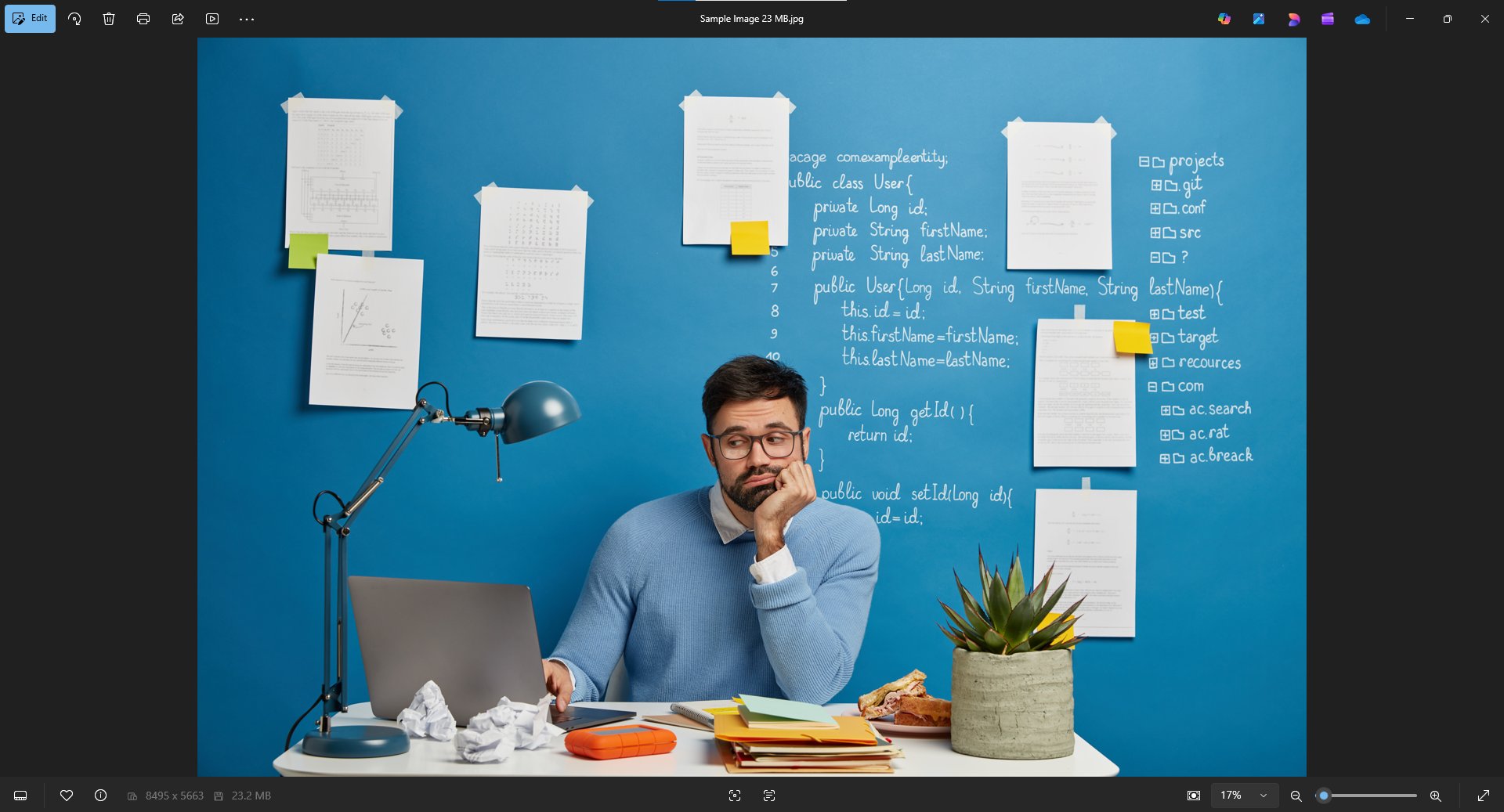
For demonstration purposes, we are uploading the image with an approximate file size of 23 MB.

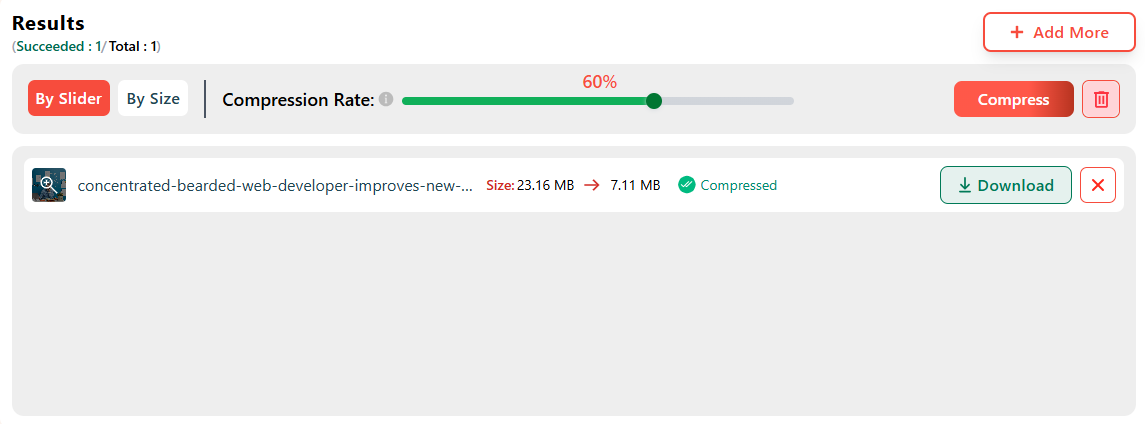
Here’s what the interface looks like once the image(s) are uploaded.
Step 2. Compress Image
When you upload the image to our image compressor, it will automatically be compressed to 60%, as shown in the image attached earlier. Besides automatic compression, you can also choose the compression rate or size as needed.
For example, we set the compression rate to 90% by dragging the slider to the right for the uploaded image.
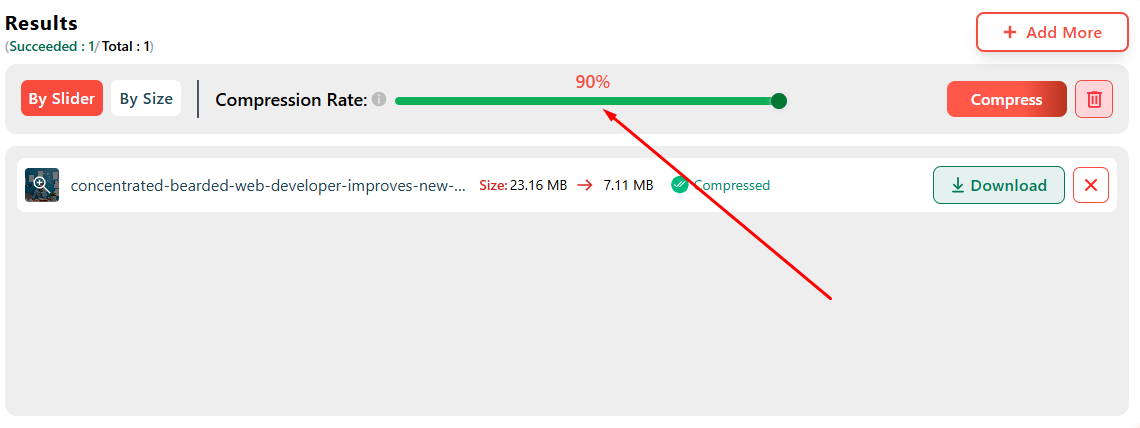
You can also add a specific size as needed. To do this, switch from the “Slider” to the “Custom” option on the left side of the compression rate slider and enter the required size.
Once you have entered or selected the desired compression rate, click the compress button. When you click the “Compress” button, the uploaded image will be compressed to the selected compression rate.
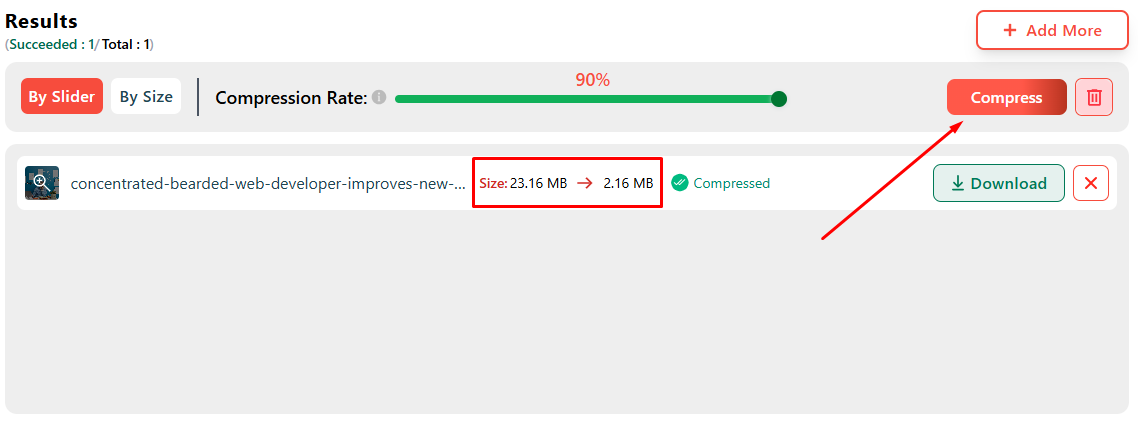
See the above image for yourself. We set the compression rate to 90% for the 23MB image we uploaded. When we clicked the compress button, the tool immediately compressed the image by 90%, reducing its size to 2.16 MB.
Step 3. Download Image
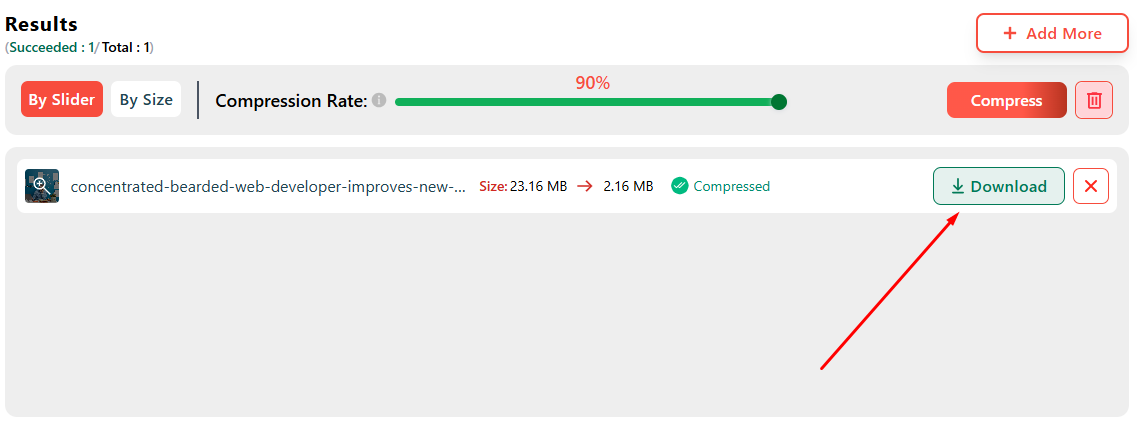
Once the image is compressed, you can download it with a single click. If you are compressing multiple images, you can download them all as a ZIP archive or download each image separately.
Since we uploaded only one image during the demonstration, we will download it. FYI, the compressed file format is JPG.
To demonstrate the quality of the results, we have attached the image we processed before & after below.
Before Compression With 23MB Size:
After Compression With a 2.16MB Size:
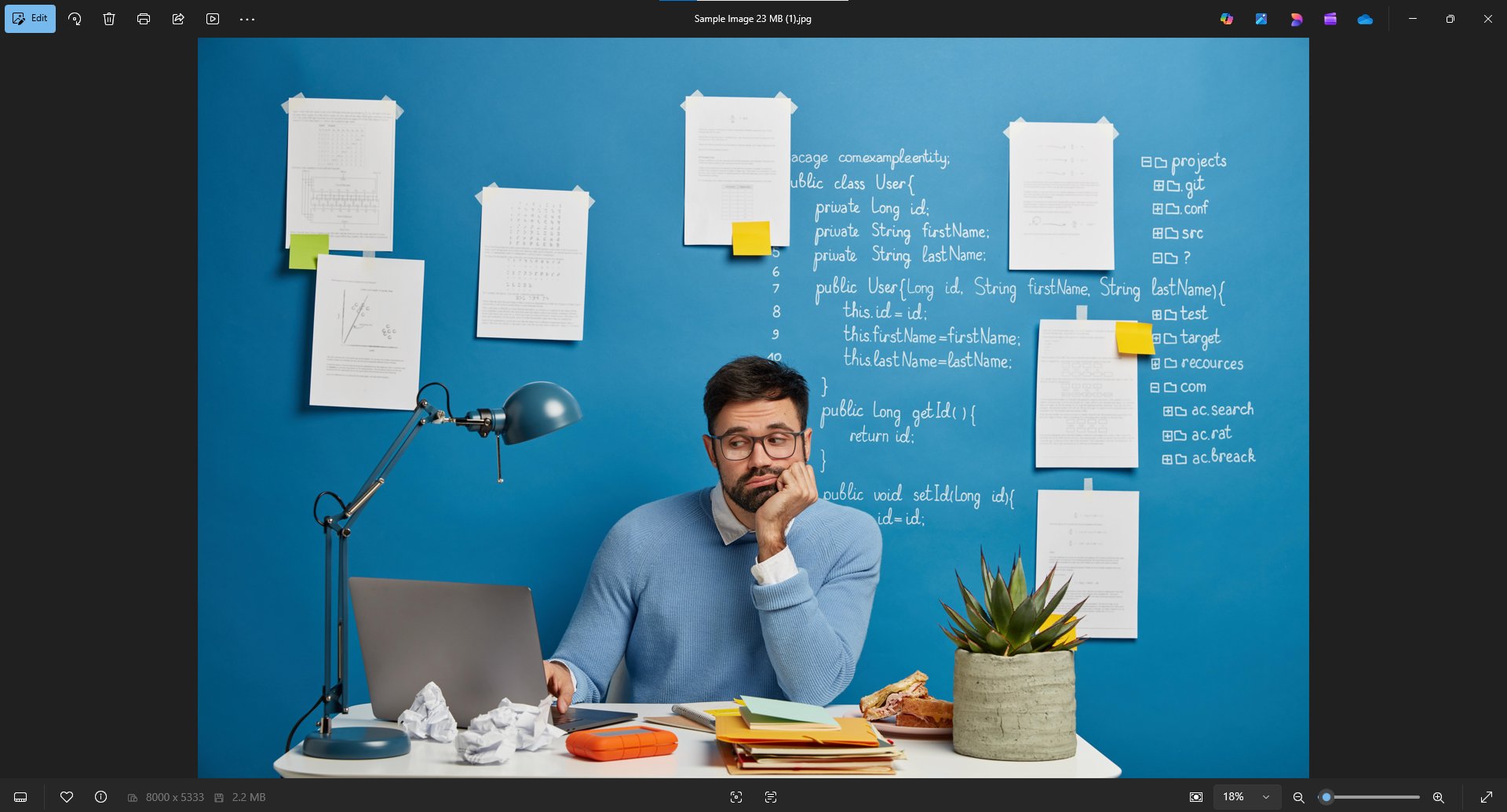
Now compare the quality of the two images above. You will find that, after compression, the tool delivers the same image at the same quality while reducing the file size by 90%. Pixels are not blurred, and even the text written on the wall is clearly readable.
Who Is Image Compressor for?
An image compressor is useful for anyone working with images who needs smaller file sizes without sacrificing quality. It is especially helpful for:
- Website owners and bloggers can use it to improve page loading speed and overall website performance.
- Digital marketers and SEO professionals can use it to optimize images for faster load times and better search engine rankings.
- Students and teachers can use it to upload images for assignments, presentations, or online learning platforms with size limits.
- Social media users can quickly share images on platforms with upload size limits.
- E-commerce store owners can use it to upload product images that load fast without hurting visual quality.
- Anyone facing upload size limits can use it to send emails, submit forms, apply for jobs, or access online portals.
Final Thoughts
Multiple methods can be used to compress images without losing quality. Previously, the most common method for achieving image quality during compression was paid software.
But there is no need to pay for the thing anymore. At ImageToText.me, we bring you a free online tools that deliver results like premium software.
As we demonstrated in this blog post, our image compressor is highly effective at compressing images while maintaining image quality.
You just need to upload your image, choose the compression rate, and compress. That’s easy, how easy it is to compress images without losing their quality. Give image compressor by ImageToText.me a try. We bet you will not regret it.