A significant portion of images nowadays includes text. We are writing this blog post to explain the different methods to convert text to image.
We are in 2026, and visual content today is not just an add-on. Visual content now acts as one of the driving force that make people create, engage with, and share information online. According to a study, online content with images receives 94% more views than plain-text content.
If you are a social media user, posts with visuals usually receive more engagement (comments, likes, shares) than those with only text. That is why, on many social media platforms, text is now also posted as an image. AI (Artificial Intelligence) has further enhanced it by enabling users to convert text into images.
As of October 2025, there are around 6.04 billion internet users worldwide. With such a large number of internet users, it is no surprise that the average user encounters billions of images every day. In fact, according to another study, 3.2 billion images are shared online daily.
What Is Text to Image Conversion?
Text to image conversion is the process of converting written text into a visual image format. When a text is converted to an image, it becomes non-editable because the content is rendered as pixels within the image. This makes the text visually fixed, design-oriented, or illustrative.
The core concept:
At its core, the text to image conversion revolves around one basic concept:
- How can text be visually represented as an image?
Well, in practice, this conversion can happen in multiple ways by:
- Rendering text onto a canvas
- Designing text as part of a visual layout
- Generating an image from a textual description
- Exporting documents or designs as image files
Types of Methods to Convert Text to Image
There are different methods that can be used to convert text to image. Some among them are offline, and some are online. With some, you get the text pasted into an image as you design it. With others (AI-based), you just give the text prompt and get an image generated in return.
Here are the common methods used to convert text to an image.
1. Text to Image Tool (Online)
The most common and simplest way to convert text to an image is to use an online tool. Happily, Imagetotext.me offers you one such text to image converter. You can use our tool to convert any text into an image instantly. Here are the steps that you need to follow to convert text to an image using our tool.
- Add Inputs
When you open our text to image tool, you will see the following interface:
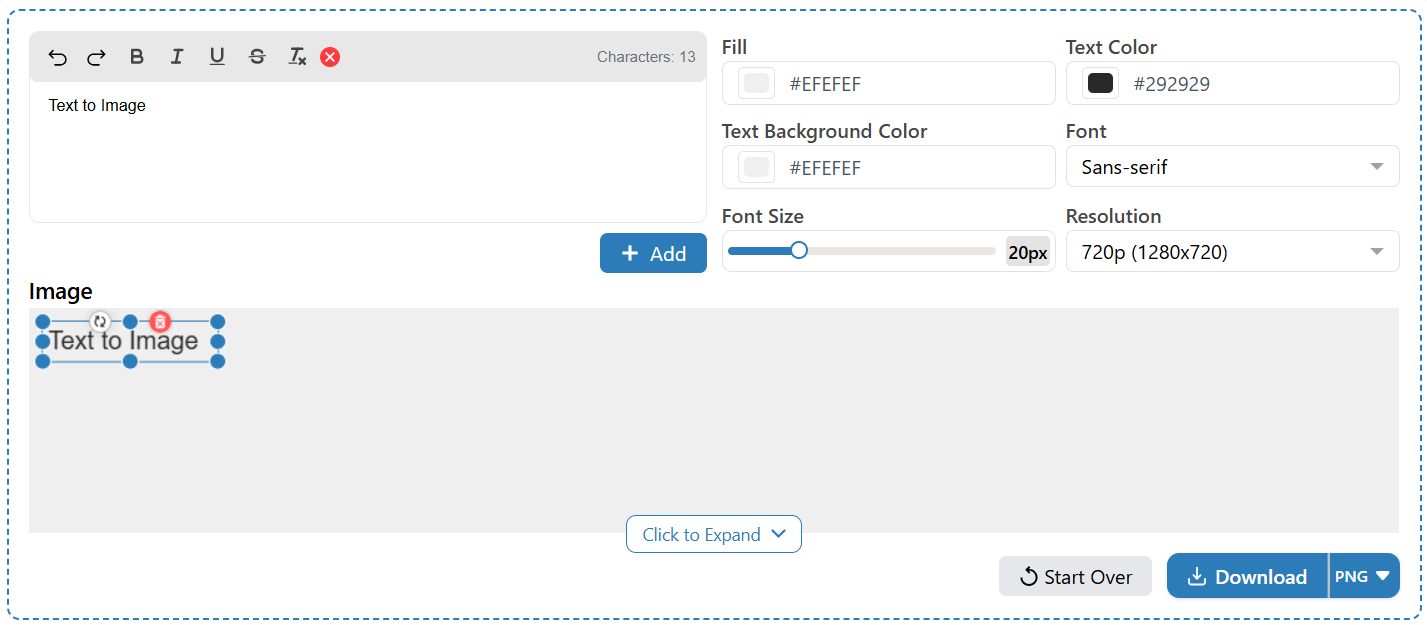
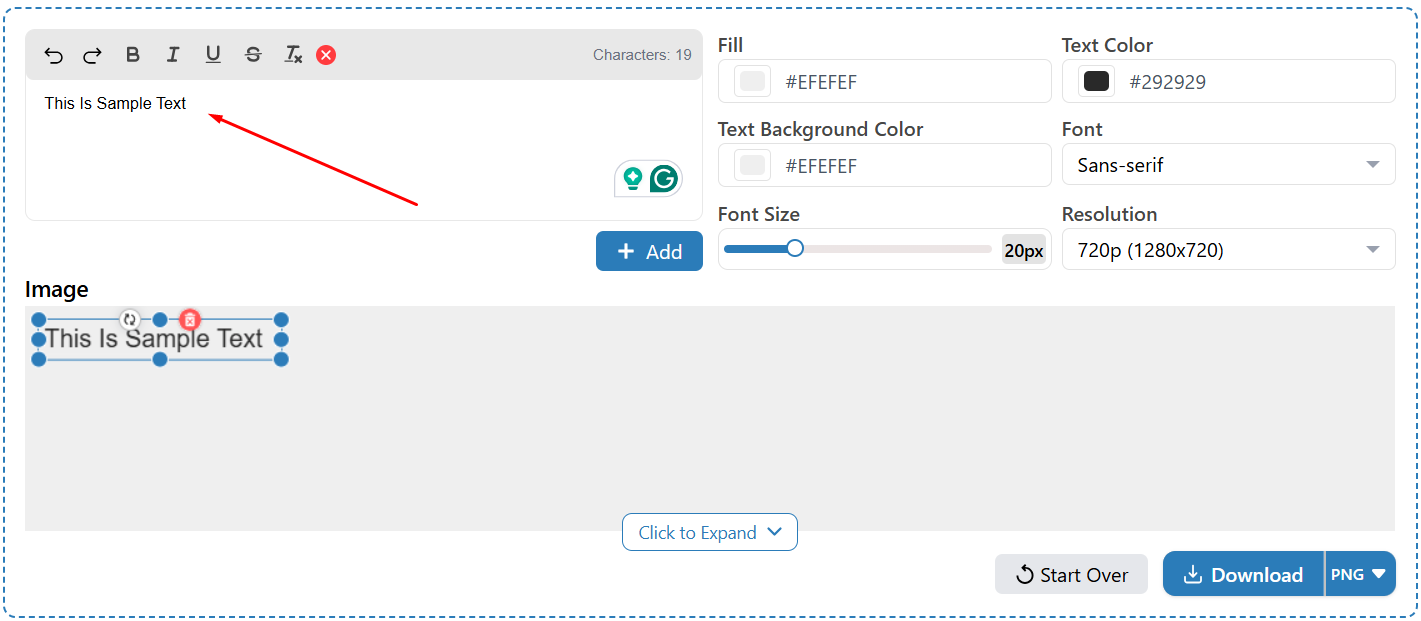
All you need to do is input the text that you want to convert to an image inside the input box. You can add and format the text by typing manually, or you can also copy and paste if you have already written any.
To demonstrate, we have typed in some text manually, as you can see in the image below:
- Customize
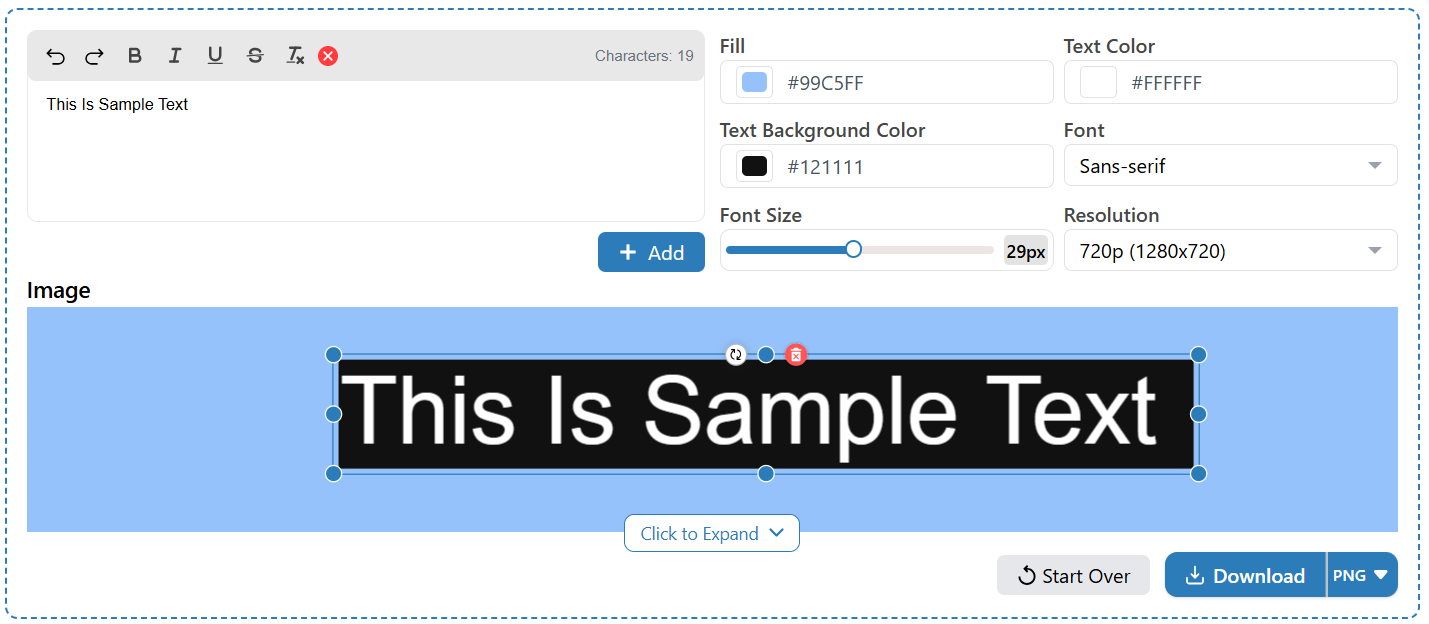
After inputting the text, the next step is customization. Our tool offers customization features to give your text a polished look.
Here are the types of changes that you can bring into the text before conversion:
- You can bold the text, underline it, or make it italic.
- Fill the background with a solid color of your choice.
- Set a separate background for the text.
- Change the font size.
- Choose the text color.
- Choose a font style: Sans-Serif, Monospace, or Serif.
- Select the desired resolution among the following:
- 720p (1280x720)
- 480p (720x480)
- 360p (640x360)
- 240p (426x240)
For demonstration purposes, we formatted the sample text we entered and applied color and font size changes, as shown in the image below.
- Download The Text As Image
Once you are done with all this and think your text is ready, download it as an image. To download, you just need to click the red “Download” button at the bottom right corner and select a file type among PNG and JPEG.
That is how simple it is to convert text to an image using an online tool like ours.
2. Microsoft Word (Offline)
Microsoft Word can also be used for converting text to images. This method is a good option when you need to convert text to images without an internet connection.
Here are the steps for using Microsoft Word to convert text into an image.
- Add Text to a New Document
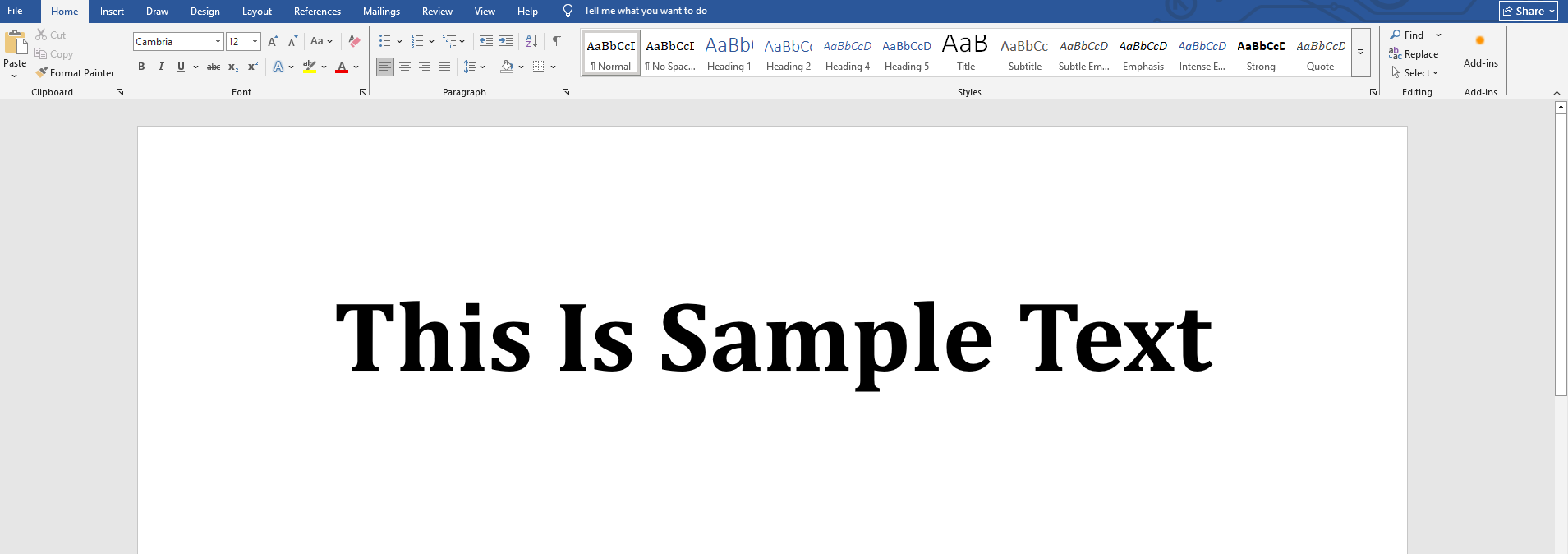
If you have Microsoft Word installed on your device, start by opening a new document. Inside that document, type in or paste the text that you want to convert to an image, as we did in the screenshot attached below.
- Format the Text
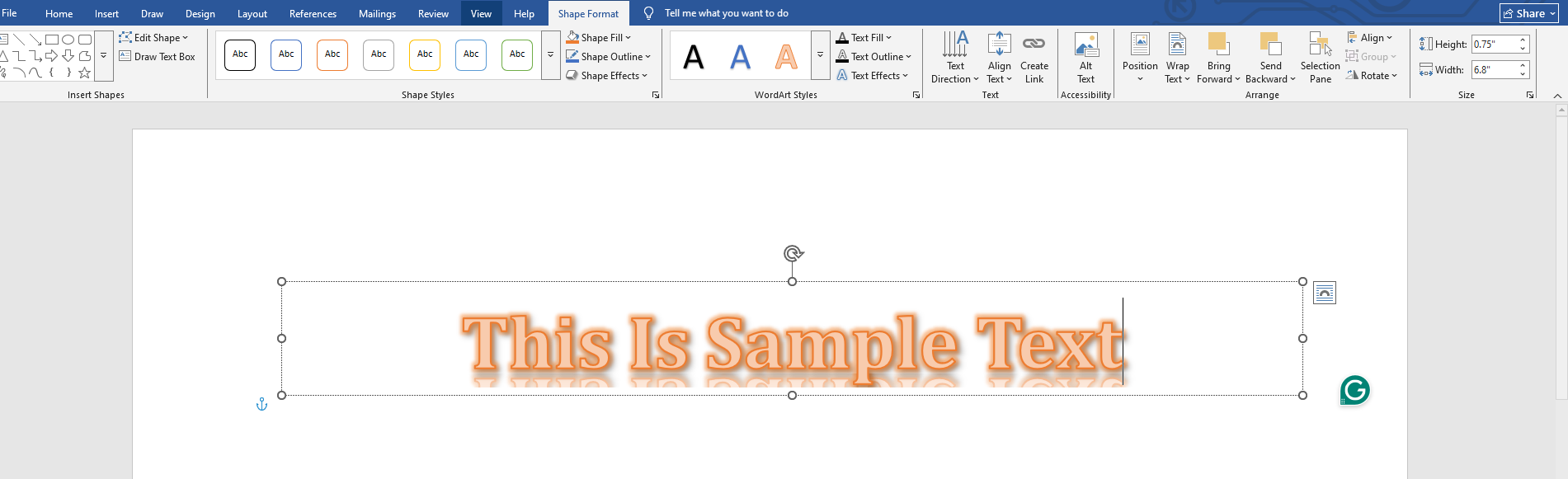
After adding the text to a blank document, format it as needed. Microsoft Word offers various formatting options that you can opt for.
In fact, if you want to make the text illustrative, you can also do that using the Word Art, Shape Format, and Design features.
- Convert to Image
Once you have finished formatting the text, the next step is to convert it to an image. To do this, select all the text that you want to convert to an image and copy/cut it. After this, paste the text as an image rather than plain text. This can be done by:
- Right click > Paste as image (second paste option from the right side)
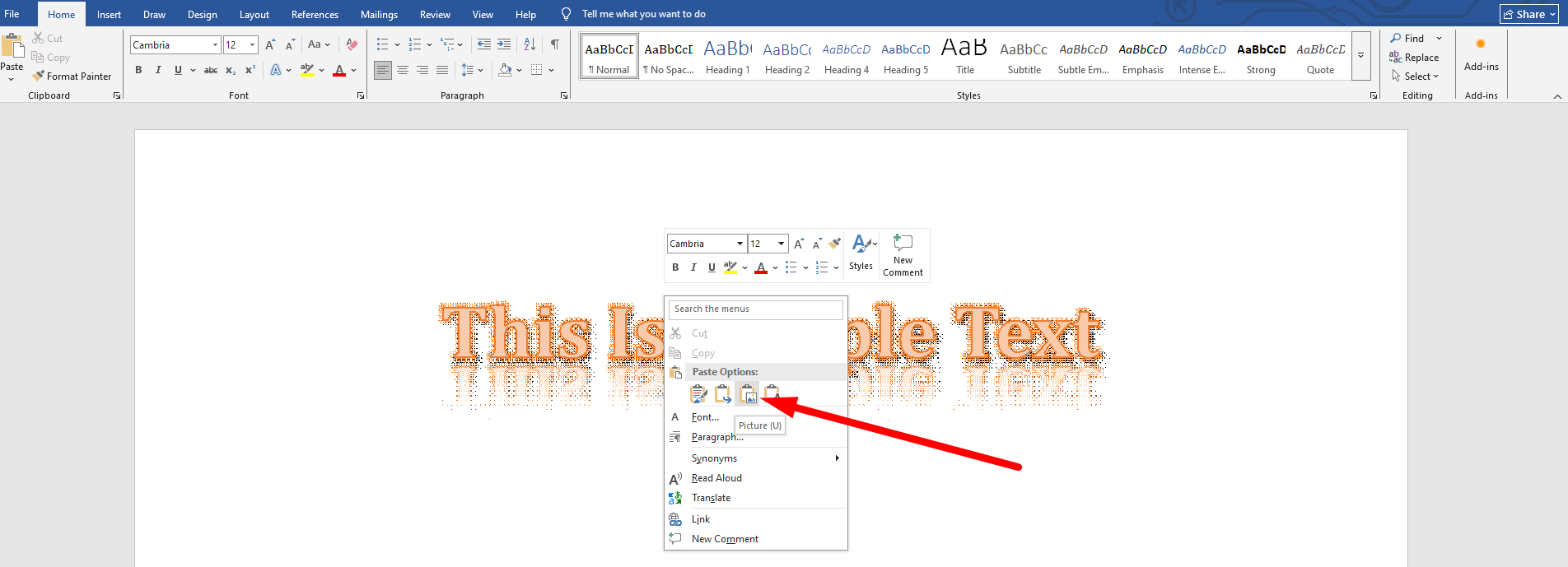
Your text will now appear as an image instead of editable text.
- Save as Picture
Once the text is converted to a picture, you can treat it as an image and make changes to its size, crop it, add a caption, etc.
After you are done with all of that, to save the text as an image, click it, then click “Save as picture” and choose the folder where you want it saved.
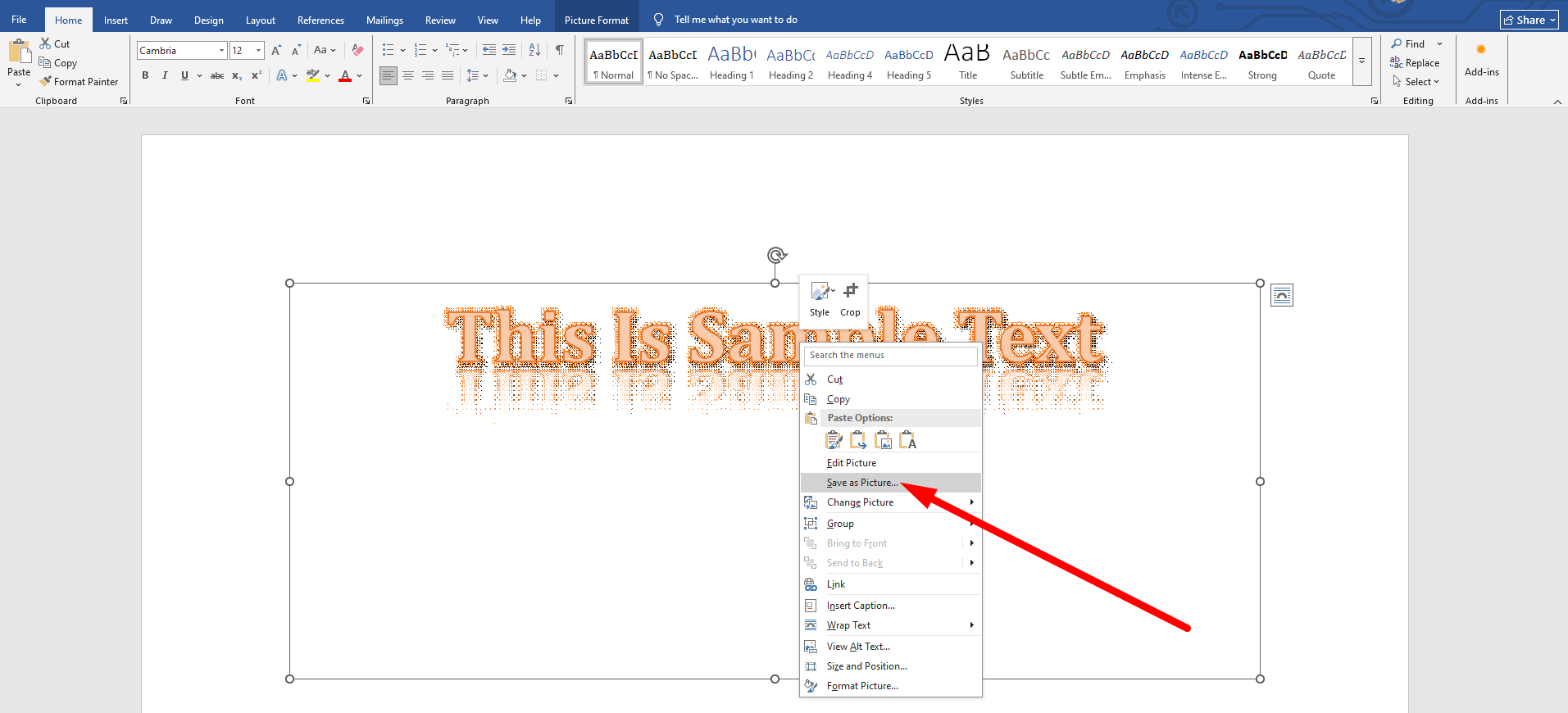
That’s it. That is how you can convert text to an image using MS Word.
3. AI-Based Text to Image Conversion
This method is getting popular nowadays. Many AI tools (e.g, ChatGPT and Gemini) have entered the market that can generate images from text-based prompts. Most users use them to generate AI images, but they can also convert text to images.
But to do this, you need the right prompt. You can use the one we shared below for your convenience:
- Add me the [Your Text] to an image canvas. Use the color [Enter Color Code] to fill the canvas background. The text background color should be [Enter Color Code]. The text color should be [Enter Color Code].
You can use the prompt above, but note that the tool may make changes on its own.
4. Other Methods
In addition to the methods discussed above, there are others that can be used to convert text to images. For example, you can use Canva to add text to a Canvas and then download it as an image. Likewise, you can use the Paint app in Windows for the same purpose, too.
Common Use Cases of Text-to-Image Conversion
Here are the most common and practical use cases of text-to-image conversion:
- People convert text into images for social media posts to get more attention and engagement.
- Users share quotes, tips, and short messages as images to make them look clean and attractive.
- Businesses use text images in marketing banners, ads, and promotions to maintain consistent branding.
- Website owners add text as images in banners or featured sections to control layout and design.
- Some users convert text into images to prevent easy copying or editing of meaningful content.
- Students and professionals use text images in presentations to maintain consistent formatting.
Bottom Line
There are multiple methods that can be used for converting text to an image. In this blog post, we tried to discuss the major ones. The most efficient and simplest method is to use an online text-to-image converter. However, there are other methods you can choose. Choose the option that best fits you.