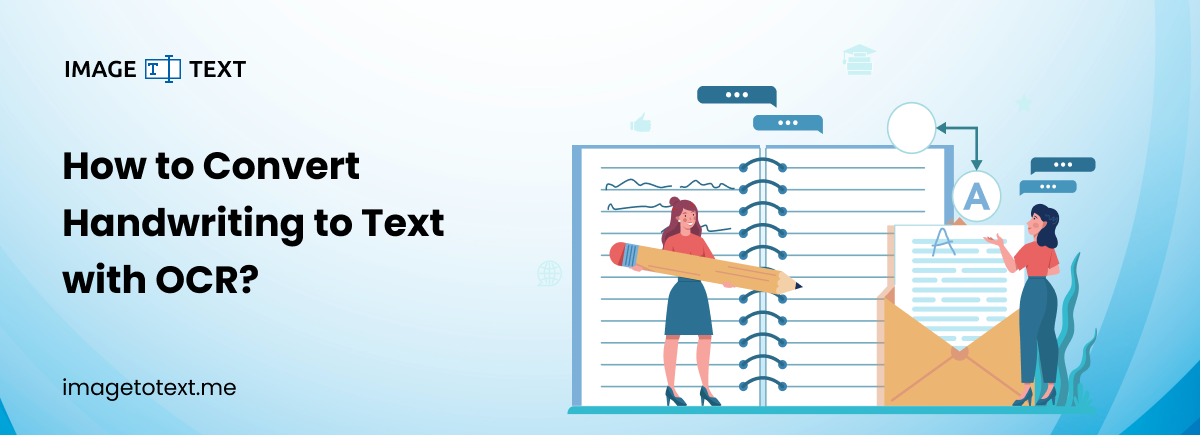
You can convert handwriting to text using OCR handwriting to text converter. Upload a picture of text and have it converted to digital text.
The technology has digitized most of the paperwork. But many people, especially students, still write by hand. Note-taking is the primary use case that involves writing by hand.
For example, students take class notes, and doctors write patient details. Business employees jot down ideas in meetings. Later, they need those notes in digital form. That is where handwriting OCR helps.
What is Handwriting OCR?
OCR, full form optical character recognition, is a popular technology used to convert static files, such as images containing text and non-editable files like PDFs, into editable text.
Handwriting OCR is an advanced form of OCR technology. It has the ability to scan handwriting to text within images or other digital files. Once scanned, it extracts handwritten text from images and converts it into machine-readable text.
How to Convert Handwriting to Text?
So now you know what handwriting OCR is. Now let’s talk about how to convert handwriting to text using it. There are multiple methods that can be used for this purpose. Popular ones include using:
- Handwriting to text converter
- Mobile OCR app
- Using AI chatbots
Let’s take a look at each of these methods to convert handwritten notes to text.
1. Convert Using Handwriting to Text Converter (Handwriting OCR)
The easiest way to turn handwriting into digital text is to use a handwriting to text converter. You can use our handwriting to text converter for accurate conversion. It uses AI and handwriting OCR to deliver better results.
Follow these steps to convert handwriting to text:
- Take pictures of the handwritten text.
- Upload handwriting to the text converter.
- Click ‘Convert to Text’.
- Let the tool scan handwriting and convert it to text.
- Copy/download results once the conversion completes.
Note: The handwriting to text tool by Imagetotext.me efficiently handles blurry handwritten text. Still, clearer pictures can deliver perfect results.
2. Convert Handwritten Notes to Text Using OCR Mobile Apps
Many mobile apps, such as Google Lens and the iPhone’s Notes app, now offer handwriting OCR functionality. Using them, you can copy handwritten text from notes easily.
Follow these steps to copy handwritten text from images using Google Lens:
- Open the Google Lens app on your mobile.
- Upload the picture with the text or capture one.
- Click ‘Select Text’.
- Click ‘Copy’.
If you are an iPhone user, you can copy the handwritten text from photos usingthe Notes app by following these steps.
- Open the Notes app.
- Create a new note or open an old one.
- Tap the camera icon.
- Choose Scan Text from the menu.
- Point your camera at the handwritten page.
- Wait while the phone reads and scans the text.
- When the Insert button turns blue, tap Insert.
Your phone will place the detected handwriting text into the note. After that, you can edit it like normal digital text.
3. Convert Handwriting to Text Using AI Chatbots
Another method for converting handwritten notes to text is asking AI chatbots to do the conversion for you. Popular AI chatbots such as ChatGPT, Gemini, and Grok have the OCR functionality good enough that they can scan handwriting to text.
Follow these steps to extract handwritten text from images using AI chatbots:
- Open an AI chatbot.
- Upload the image with the text.
- Give prompt ‘extract handwritten text from this image’.
The AI chatbot will instantly present you with the extracted text. However, this method has a limitation: you can upload only a few images with the free versions. This means that using the free version, you can extract text from a limited number of image files.
Which Method is Best To Extract Handwritten Text from Images?
Each method we discussed has its own benefits and limitations. Some are fast and simple. Others offer more control and features. The right choice depends on:
- How often do you convert notes?
- How many pages do you need to process?
- The quality of handwriting in the image.
Below is a simple comparison to help you decide.
| Method | Ease of Use | Accuracy | Plus Point | Limitations |
|---|---|---|---|---|
| Handwriting to text converter | Very easy | High | Offers to download converted text as editable and non-editable files | Requires internet |
| Mobile OCR Apps | Easy | Sometimes struggle with handwritten text | Offers text translation and instant copy | No download options, struggles with blurry handwriting |
| AI Chatbots | Somewhat easy | Good | Make auto spelling corrections if asked in prompt | Limited uploads in free versions |
So, which method is best for converting handwritten notes to text?
Our Take:
A dedicated handwriting to text converter is the best method for most users. Why? Because it offers:
- Higher accuracy (thanks to AI integration with handwriting OCR)
- Eiting control lets you crop, revert, and flip image before conversion
- Extraction from a batch of images at once
- Free to use without any daily usage limits
Tips for Efficient Handwriting to Text Conversion
- Write clearly and keep letters separate.
- Use dark ink on white paper.
- Avoid very small or very large letters.
- Keep space between words.
- Do not overlap lines.
- Place the paper on a flat surface.
- Take the photo in bright light.
- Avoid shadows on the page.
- Keep the camera steady.
- Capture the full page without cutting edges.
- Scan at high quality if you use a scanner.
- Check the image before you upload it.
- Review the converted text and fix small errors.
Final Talk
As explained above, these are three easy methods you can use to convert handwriting to text. Each method works, but some give better accuracy and more control. If you want fast results with clean, editable text, a handwriting to text converter can be the best choice.
Helpful Resources
- Learn how you can compress images without affecting quality.
- 3 different methods to convert text to PDF.
For more image-related discussions, visit our blogs page.