LinkedIn is a professional social network where people connect for jobs, careers, and business opportunities. The platform was launched in May 2003 to help professionals show their skills and find work more easily.
In 2016, Microsoft bought LinkedIn for $26.2 billion. This was one of Microsoft’s biggest buys ever. Today, LinkedIn is the world's largest professional network. It has over 1.2 billion registered users from many countries. A major share of users access the platform through its mobile app.
But there is a problem that many face on the app. The problem is that you cannot copy text from a LinkedIn post in the app. Yet, the LinkedIn mobile app doesn’t allow you to copy text from a post. There are some other methods that let you do that.
Why LinkedIn Does Not Allow Text Copy on Mobile?
LinkedIn wants people to stay inside the app. When copying text feels hard, people read more posts and scroll more. This helps the app stay busy and active.
LinkedIn also wants to keep content safe. People share their ideas, stories, and tips on the app. Easy copying can cause others to steal this content. So, LinkedIn blocks text copying on mobile to protect users.
How to Copy Text from LinkedIn Post on Mobile (3 Easy Methods)?
Multiple methods can be used to copy text from a post in the LinkedIn mobile app. Here are the easiest methods that can help you achieve that.
1. Using Image to Text Converter
The easiest way to copy text from LinkedIn on mobile is to use an image to text converter. You can use our image to text converter completely for free and copy text in seconds.
Here’s a little demonstration of how you can use image to text converter for copying text from LinkedIn posts:
- Take a screenshot of the LinkedIn post on your mobile.
- Open our image to text converter using any browser.
- Upload your screenshot.

To demonstrate, we have uploaded one to the tool.
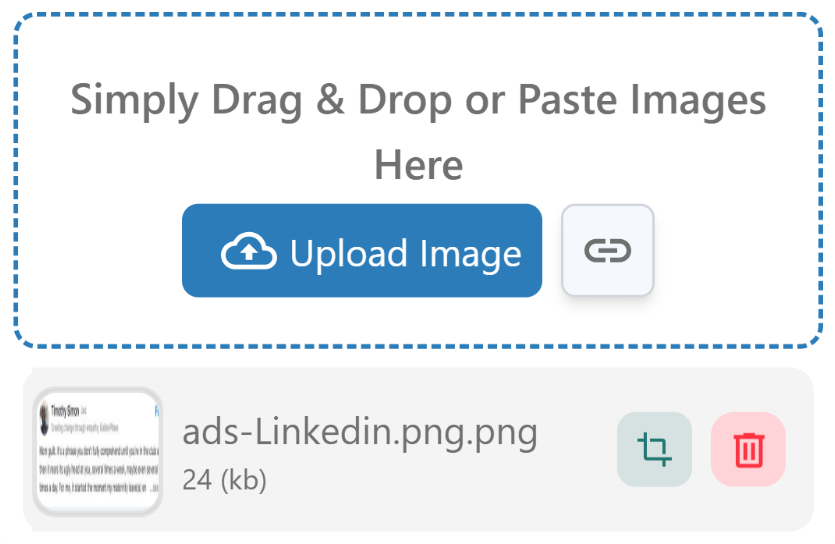
- Tap ‘Convert to Text’ and wait for the results.
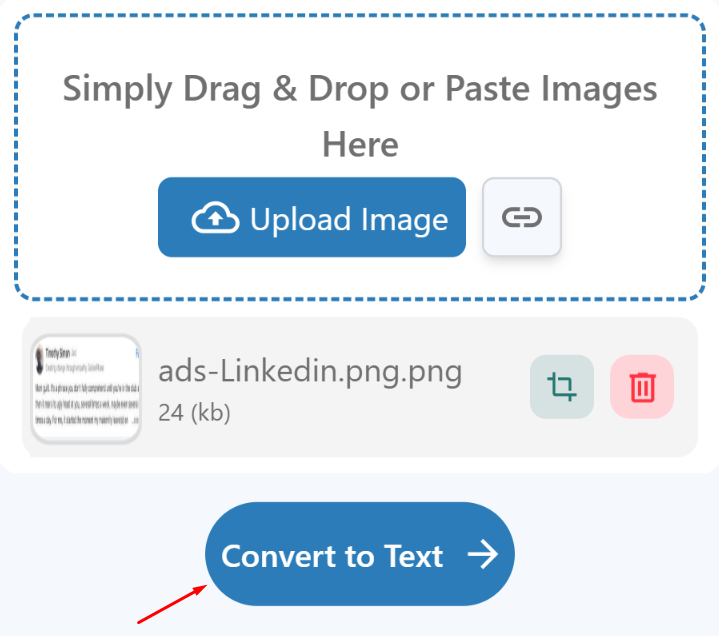
- Tap the ‘Copy’ icon at the top of the results box.
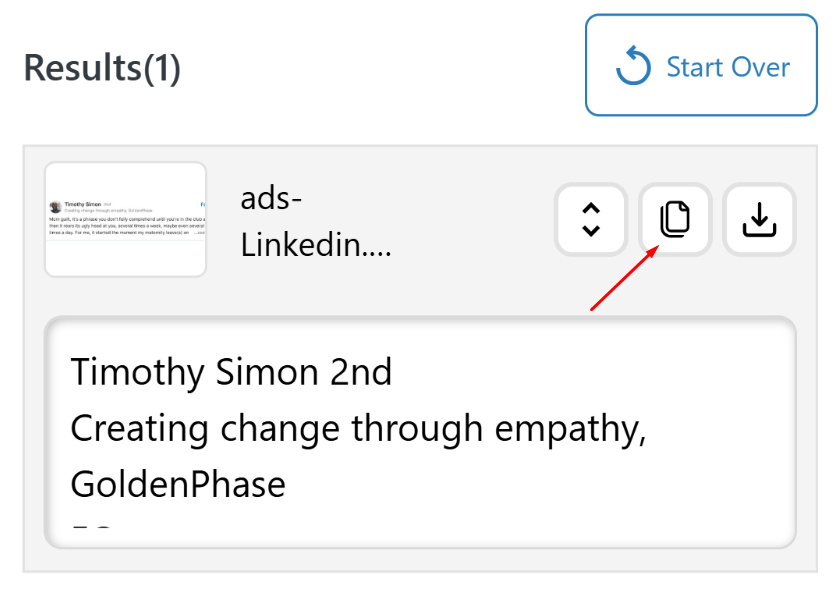
That’s it. You have successfully copied the text from a LinkedIn post. Now you can paste the text and use it as needed.
If the text is too important, you can also download it for free by tapping on the download icon just next to the copy icon. The tool offers three file types for downloading the text. These include TXT, PDF, and DOCX. Tap on the one that best fits your needs.
2. Using Google Lens
The second method for copying text from a LinkedIn post is to use Google Lens. Many smart devices today include the Google Lens app by default. Those who do not have the app installed can download it from Google Play or access it in a browser.
Here’s how Google Lens can be used for copying text from LinkedIn posts.
- Take a screenshot of the post.
- Open Google.com in any browser.
- Tap the camera icon on the right side of the search bar.
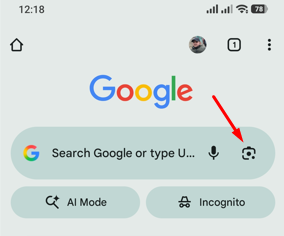
- Upload the screenshot of the LinkedIn post.
- Once the screenshot is loaded, click ‘Select text.’
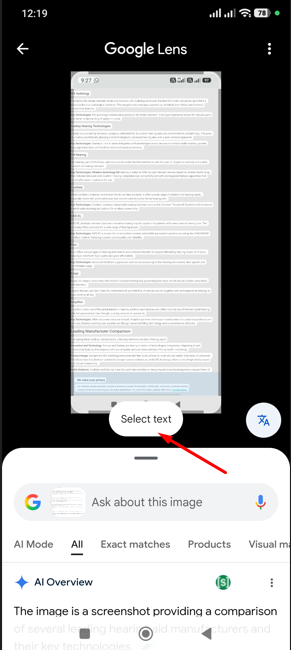
- Now click ‘Copy’.
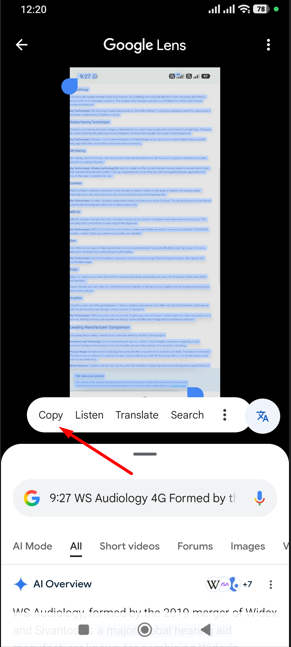
Your text from the LinkedIn post is copied. You can now use the text as needed.
3. Using LinkedIn in a Mobile Browser
Another simple way to copy text from a LinkedIn post is to use LinkedIn in a mobile browser instead of the app. This method works on both Android and iPhone devices. It also feels close to the desktop experience.
First, open your mobile browser, such as Chrome or Safari. Then go to LinkedIn and log in to your account. After that, open the browser menu and select the desktop site option. Now, find the LinkedIn post from which you want to copy text.
Once the post has loaded, tap and hold the text. You will see text selection handles appear. Select the required text and tap the copy option. After that, you can paste the text anywhere you want.
How to Copy Text from LinkedIn Comments on Mobile?
Copying text from LinkedIn comments on the mobile app is the same as copying the text from a LinkedIn post. You can use any of the methods we discussed earlier to copy text from LinkedIn comments on mobile. These include using:
- Image to text converter
- Google Lens
- LinkedIn desktop site/version on a mobile browser
Final Talk
Copying text from a LinkedIn post on mobile can feel difficult at first. The LinkedIn app does not support direct text copying. However, this does not mean it is impossible. You can still copy post text by using simple workarounds.
Methods like the three we discussed:
- Image to text converter
- Google Lens
- Using LinkedIn in a mobile browser makes the task easy
Each of these methods works well in different situations. You only need to choose the one that fits your device and comfort.